
Installing and Setting Up WP Mail SMTP
The first thing you need to do is install and activate the WP Mail SMTP plugin. For more details, see our step-by-step guide on how to install a WordPress plugin.
Upon activation, you will see the setup wizard. You can skip it, as we will show you how to set up WP Mail SMTP manually.
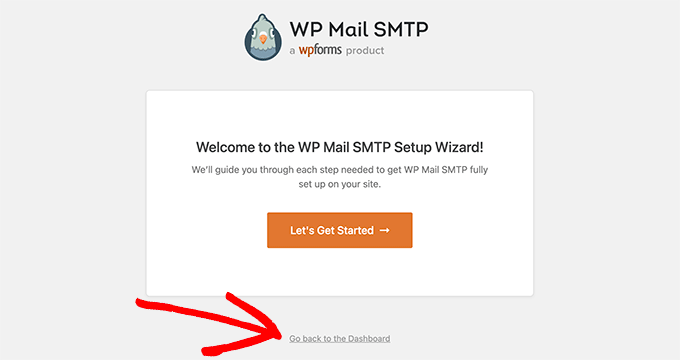
Just click on ‘Go back to the Dashboard’.
Next, you need to visit the WP Mail SMTP » Settings page from the WordPress dashboard to configure the plugin settings.
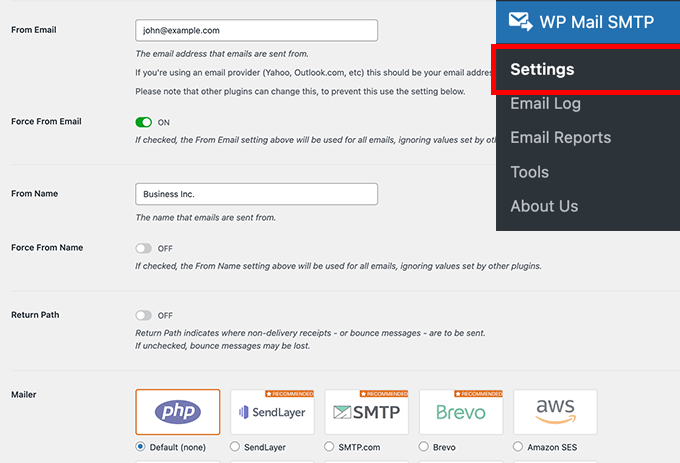
You need to enter your SMTP settings to use WP Mail SMTP. The first part of the settings will be similar regardless of your hosting company. It includes the following fields:
- From Email – This email address will be used to send all WordPress emails.
- From Name – This name will be used to send emails. We recommend using your website’s title.
- Return Path – Check this box to receive delivery notifications or bounced messages.
- Mailer – You need to select ‘Other SMTP’ here as you will be sending emails using your host’s SMTP server
Note: If you want to use third-party mailers, like Gmail SMTP, please follow their guideline by reaching out to their support team to get more information
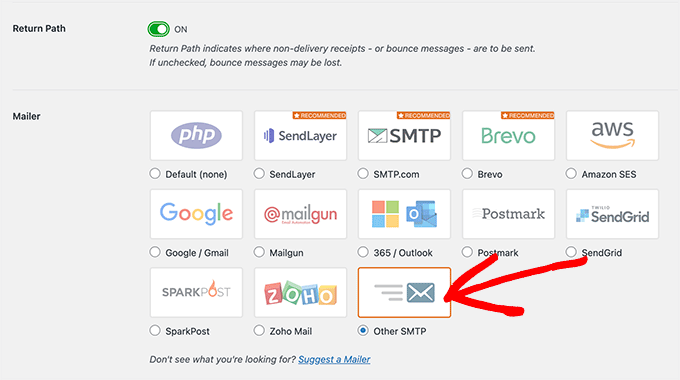
If you want to continue using your host, you need to select ‘Other SMTP’ and enter the SMTP server settings provided by the hosting company.
SMTP Host: Same as Outgoing Server shown in cPanel (use: cloud201.cloudwebhosting.com)
Encryption: TLS
SMTP Port (outgoing: 465) and (incoming: 993(use 995if the test fails)
Authentication: Enable Authentication
SMTP Username: The email you want to send emails as in WordPress
SMTP Password: Your email's password
From Name: Preferably the name of your website
From Email: This should match the email you've configured to ensure better deliverability
Force From Email set to on.
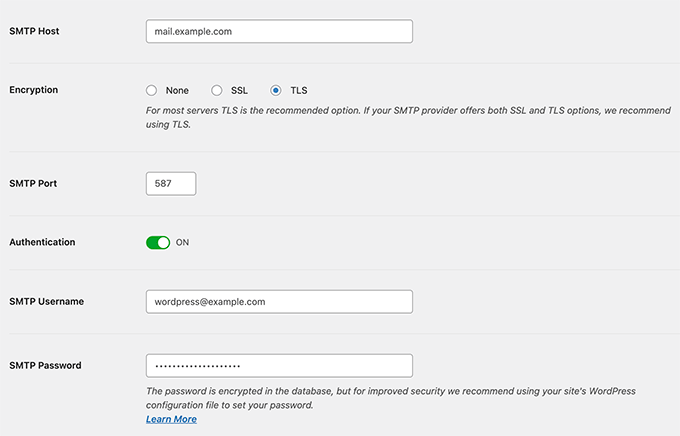
These settings are required to connect with any SMTP server. However, their values may differ from one WordPress hosting company to another.
Run through the rest of the configuration steps, then the wizard will test your email settings to make sure they work properly. If you see any warnings regarding DMARC and SPF then they can be resolved in cPanel > Email Deliverability:
